How to Change Clothes in a Photo
Step-by-step guide to changing clothes in any photo using AI. Includes prompt tips, common fixes, and a free tool to try right now.
Tested by OutfitSwap Studio testing team · Updated 2026-06-15
This guide is based on repeated prompt tests across portrait, upper-body, and full-body photos, with examples reviewed for edge quality, lighting consistency, and identity preservation.
Powered by our AI Clothes Changer pick a preset or describe the outfit you want — AI handles the rest.
Step-by-Step: Change Clothes in Any Photo
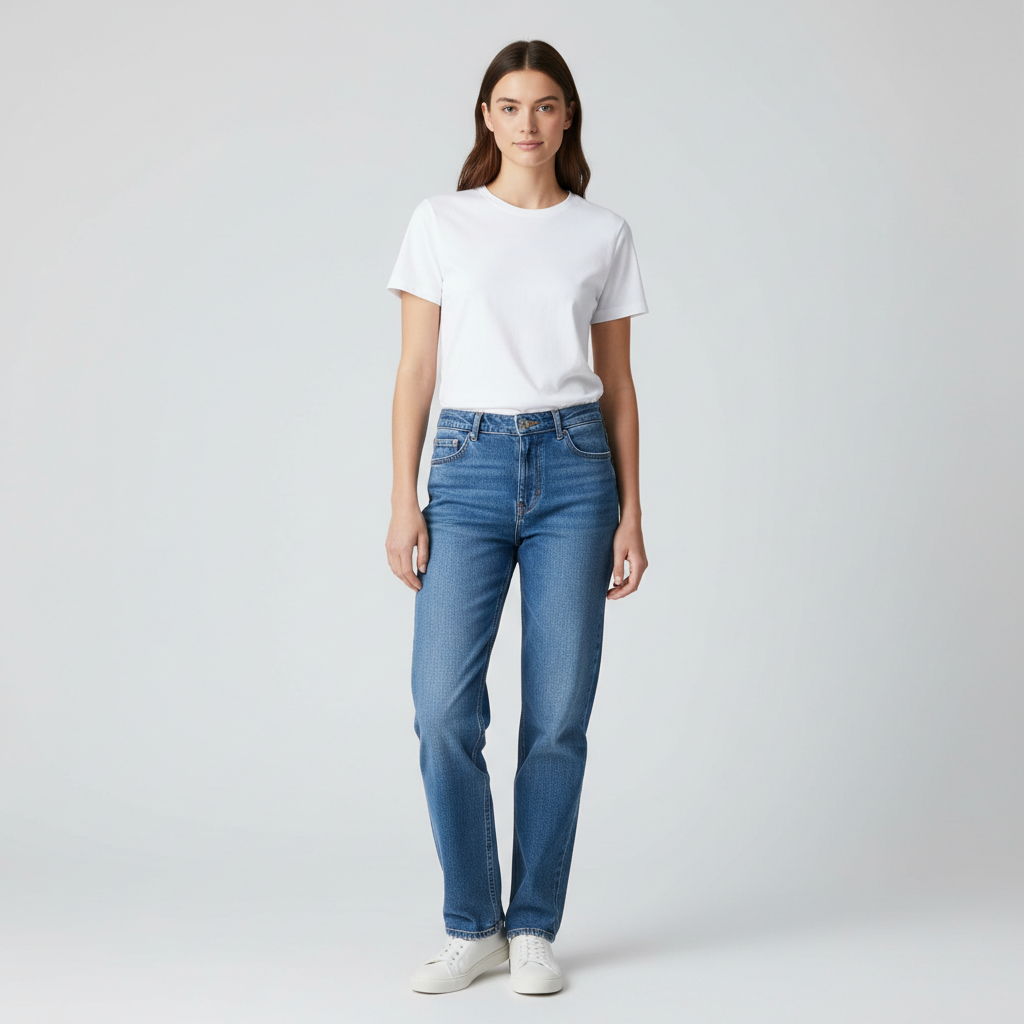
Source photo
Use one photo to test a more polished outfit before editing by hand
Choose a Clean Base Photo
Pick an image with clear clothing edges, good lighting, and minimal distractions.

Prompt target
Turn a casual image into a work-ready outfit preview
Write a Specific Prompt
State exactly what to change and what to keep: "change shirt to white linen, keep jeans."
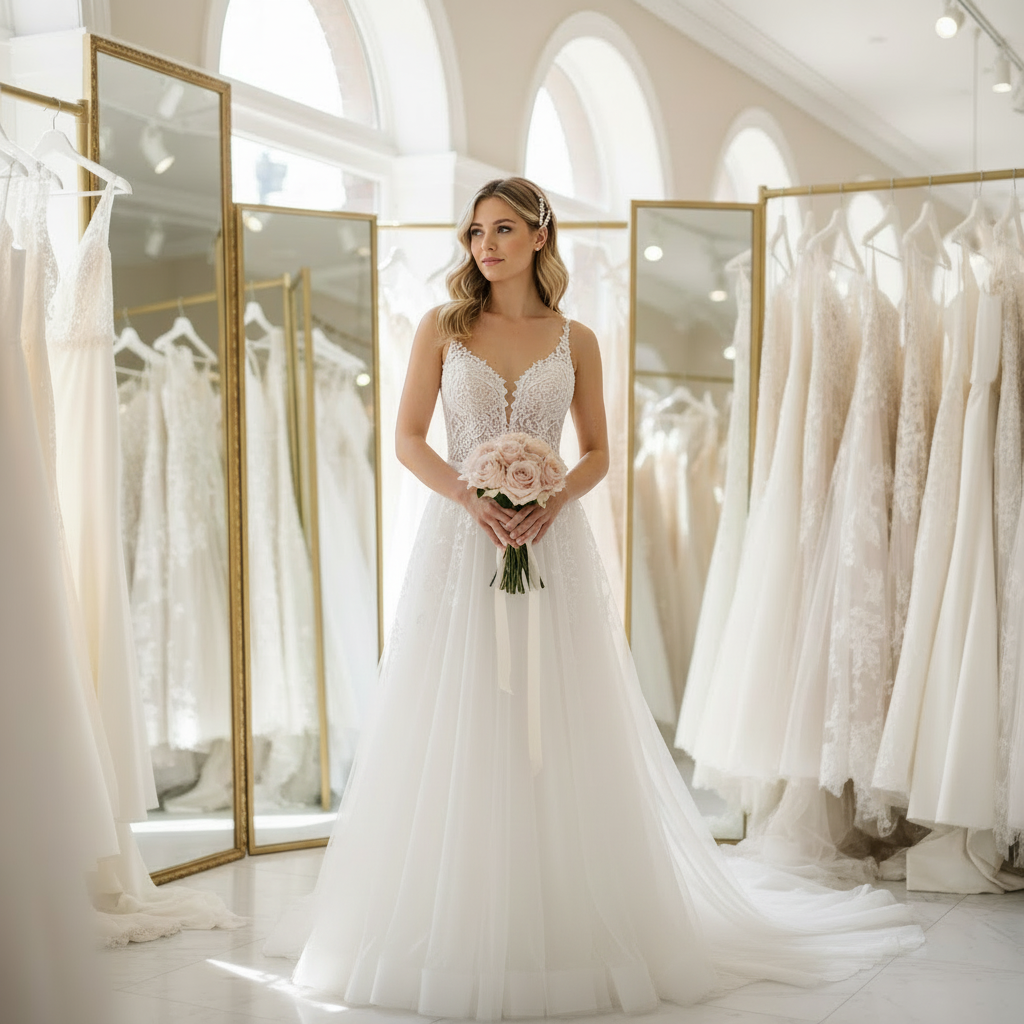
Result check
Preview a formal look from a simple base photo
Refine in Small Steps
Adjust one detail at a time. Small iterations produce more natural results.
Base Photo Checklist for Clothing Edits
Clear inputs = fewer retries and cleaner results.
Do This
- Single person in frame
- Visible shoulders and waist
- Even lighting on clothing
- Plain contrasting background
- Sharp image with low noise
- Neutral standing pose
Avoid This
- Motion blur
- Hands covering clothes
- Strong shadows on garments
- Low resolution or pixelated
- Multiple people in shot
- Mirror reflections
Edit Tip
Photos with strong contrast between clothing and background give the AI clearer boundaries for seamless edits.
Troubleshooting Common Issues
Quick fixes for the most common problems
Outfit doesn't look realistic
Solutions:
- Use a higher quality source photo (at least 512px resolution)
- Ensure good lighting in your original photo
- Try a more detailed prompt with specific colors and materials
- Avoid complex poses - neutral standing poses work best
Body proportions look wrong
Solutions:
- Make sure your full body or 3/4 body is visible in the photo
- Stand in a neutral, upright pose
- Avoid extreme camera angles or distortion
- Use photos taken at eye level, 6-8 feet away
Colors don't match my description
Solutions:
- Be very specific about colors (e.g., "navy blue" not just "blue")
- Mention material types that affect color (e.g., "matte black" vs "glossy black")
- Try regenerating - AI has some randomness
- Check that your photo has good color accuracy
Background got changed or distorted
Solutions:
- Use photos with simple, uncluttered backgrounds
- Avoid busy patterns or complex scenes behind you
- Stand away from walls or objects
- Try using a plain background if possible
Generation takes too long or fails
Solutions:
- Check your internet connection
- Try a smaller image file (under 5MB)
- Refresh the page and try again
- Contact support if problem persists
Still experiencing issues?
Our support team is here to help you get the best results
Contact Support →Step by step workflow
- Pick a clear photo with full body or 3/4 body visible
- Write a short prompt with garment, color, material, and fit
- Add a keep line for face and background
- Generate and refine with small changes
Photo requirements
- Even lighting, minimal shadows
- Simple background with contrast
- Avoid group photos and heavy filters
Prompt template
Garment + color + material + fit + occasion, then keep line. Example: "Blue blazer, white shirt, slim trousers. Keep face and background unchanged."
Troubleshooting
- Blurry edges: use higher resolution and simpler background
- Wrong color: use specific color names
- Body shape changes: add "keep body shape unchanged"
Manual editing vs AI
AI is faster for preview and iteration. Manual editing is better when you need pixel perfect control. Use AI first to explore options, then edit manually if needed.
Mobile tips
Upload from your phone gallery in good light and avoid low resolution screenshots.
When the change is only color
If the garment already looks right and you only want a different shade, use change clothes color in a photo instead of a full restyle. If you are ready to run a color-only edit immediately, go straight to the AI clothes color changer.
Frequently Asked Questions
What is the easiest way to change clothes in a photo?
Do I need Photoshop or photo editing skills to change clothes in a photo?
Can I change clothes in a photo on my phone?
How do I keep my face and background the same?
Can I change just one item instead of the whole outfit?
When should I use color change instead of a full outfit change?
Still have questions?
Contact our support team →Ready to Try It Yourself?
Apply what you learned. Upload a photo and change clothes in seconds.
Related Resources
AI Clothes Changer
Change Clothes Color in a Photo
AI Clothes Changer Prompts
Outfit Swap
Free AI Clothes Changer
Explore more tools and guides in our complete guide